Step 1. [ Open Microsoft Outlook Express ]
|
- |
Open Microsoft Outlook Express through your Start menu or desktop icon |
|
|
Step 2. [ Tools / Accounts ]
|
- |
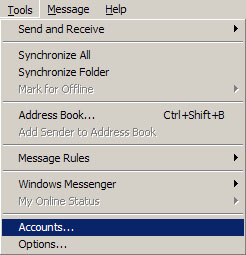
From the menu accross the top, click 'Tools'
|
|
- |
Click 'Accounts...'
|
|
|
Step 3. [ Internet Accounts ]
|
- |
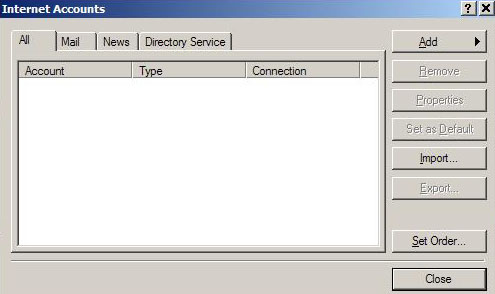
This will bring up the Internet Accounts screen |
|
|
Step 4. [ Add Mail ]
|
- |
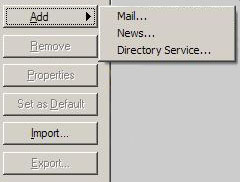
Click the 'Add' button in the top right corner |
|
- |
From the list of options, click 'Mail...' |
|
|
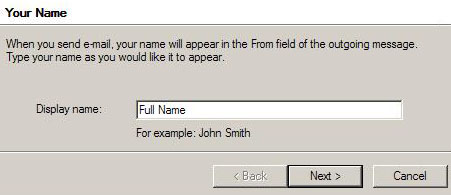
Step 5. [ Your Name ]
|
- |
In the 'Display Name:' field, type your name |
|
- |
Click the 'Next >' button |
|
|
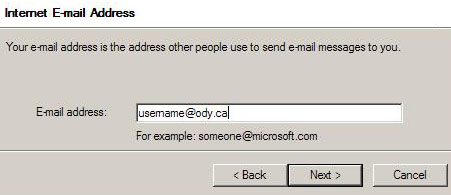
Step 6. [ Email Address ]
|
- |
In the 'E-mail address:' field, type your Odynet email address |
|
- |
Click the 'Next >' button |
|
|
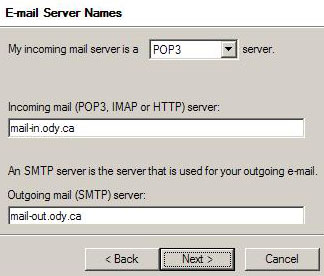
Step 7. [ Server Settings ]
|
- |
From the dropdown list, choose 'POP3' |
|
- |
In the 'Incoming mail server:' field, type 'mail-in.ody.ca' |
|
- |
In the 'Outgoing mail server:' field, type 'mail-out.ody.ca' |
|
- |
Click the 'Next >' button |
|
|
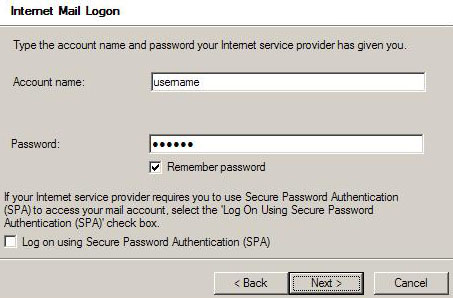
Step 8. [ Login Information ]
|
- |
In the 'Account name:' field, type your Odynet username
(without the @ody.ca) |
|
- |
In the 'Password:' field, type your Odynet password |
|
- |
Make sure 'Log on using SPA' is NOT checked |
|
- |
Click the 'Next >' button |
|
- |
On the next screen, click the 'Finish' button to complete |
|
|